CVs and portfolios
Cette page n'a pas encore été traduite ; elle est donc affichée en anglais.
Documents → CVs and portfolios
A CV in Postulo is a variant: a selection of entries from your career record, in an order you choose, with a theme.
Make one variant per kind of role you apply for, not one per application. Three or four is normal. One per application means maintaining forty documents.
A CV, or a portfolio
The same page holds both, because they are the same thing selected and laid out differently.
- A CV is a career read backwards: what you did, where, and when, with the dates carrying the argument.
- A portfolio is the work first — projects, and the things they point at — with the career following as context, set small.
Choose which on the form. Everything else is identical: the same career record, the same tailoring, the same included switch, the same export. A portfolio picks from its own family of themes, because the difference is one of structure rather than of styling.
"Portfolios of different kinds" — a developer's, a designer's, a researcher's — is answered by the theme and by what you select, not by a third setting. They differ in exactly those two things, and both are already yours to choose. A researcher's portfolio can pick publications from the career record like anything else, and prints each as one line.
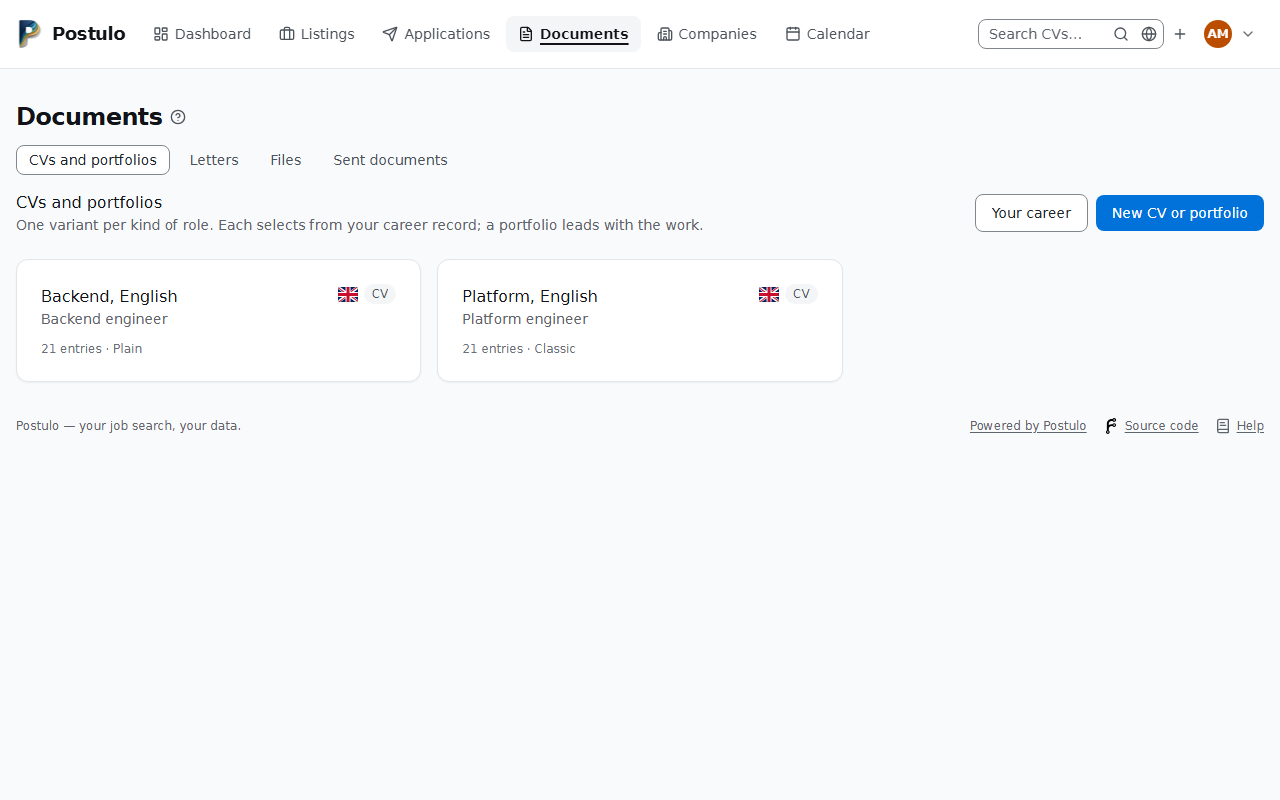
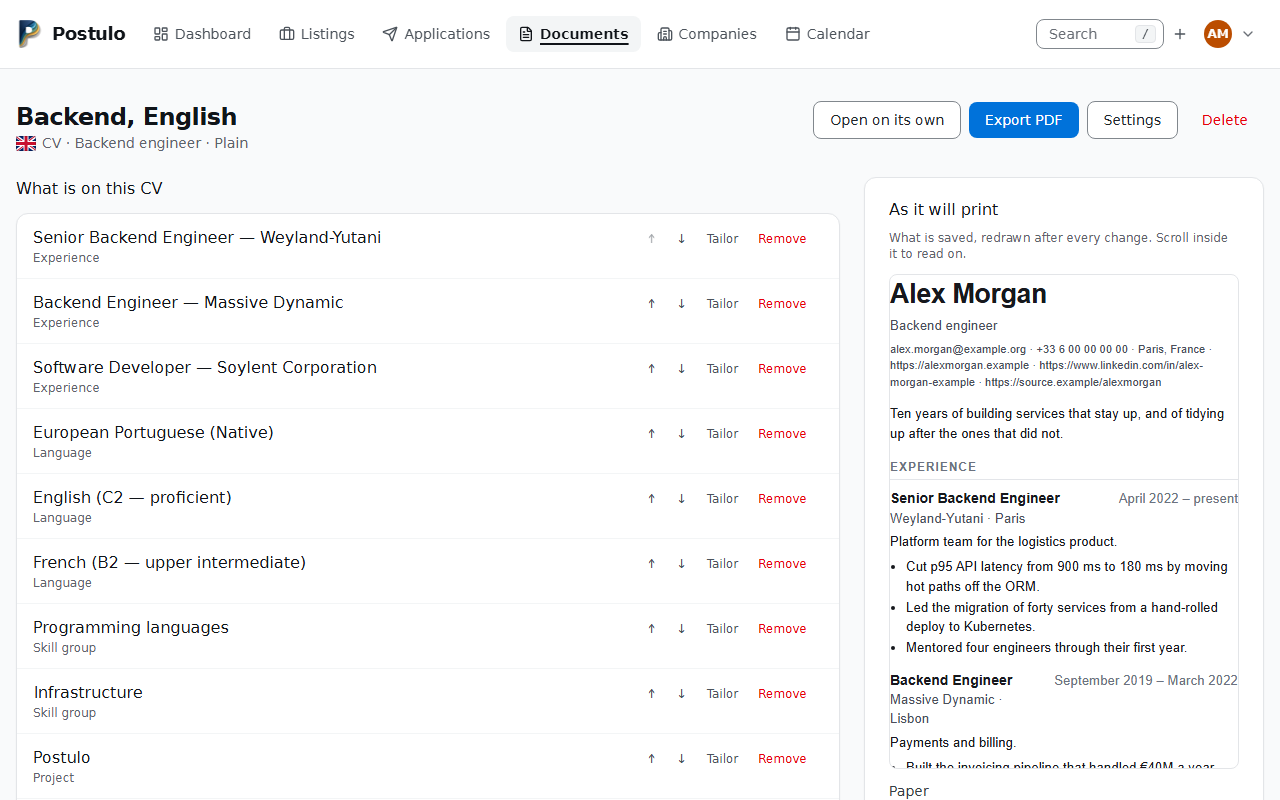
Building one
- New CV or portfolio. Give it a name for your own use — "Backend, English" — plus an optional headline and opening summary.
- Add entries. The panel on the CV page lists everything from your career record that is not already on this CV, grouped by kind. Tick what belongs and add it.
- Order it. The arrows move an entry past the one above or below it, and at either end the arrow is greyed out. Sections appear in the order their first entry does, so moving one job to the top moves the whole Experience block with it. A newly added entry goes to the end, and the arrows own it from there.
Tailoring without forking
This is the point of the whole design.
Tailor on any entry lets you rewrite its highlights for this CV only. The master record is untouched, and your other variants are unaffected. Leave the override empty and the entry follows the master copy — including any later corrections.
Included can be unticked to keep an entry on the variant while leaving it off the page. Useful for something you want back next month without having to find it again.
Themes
Two come with Postulo:
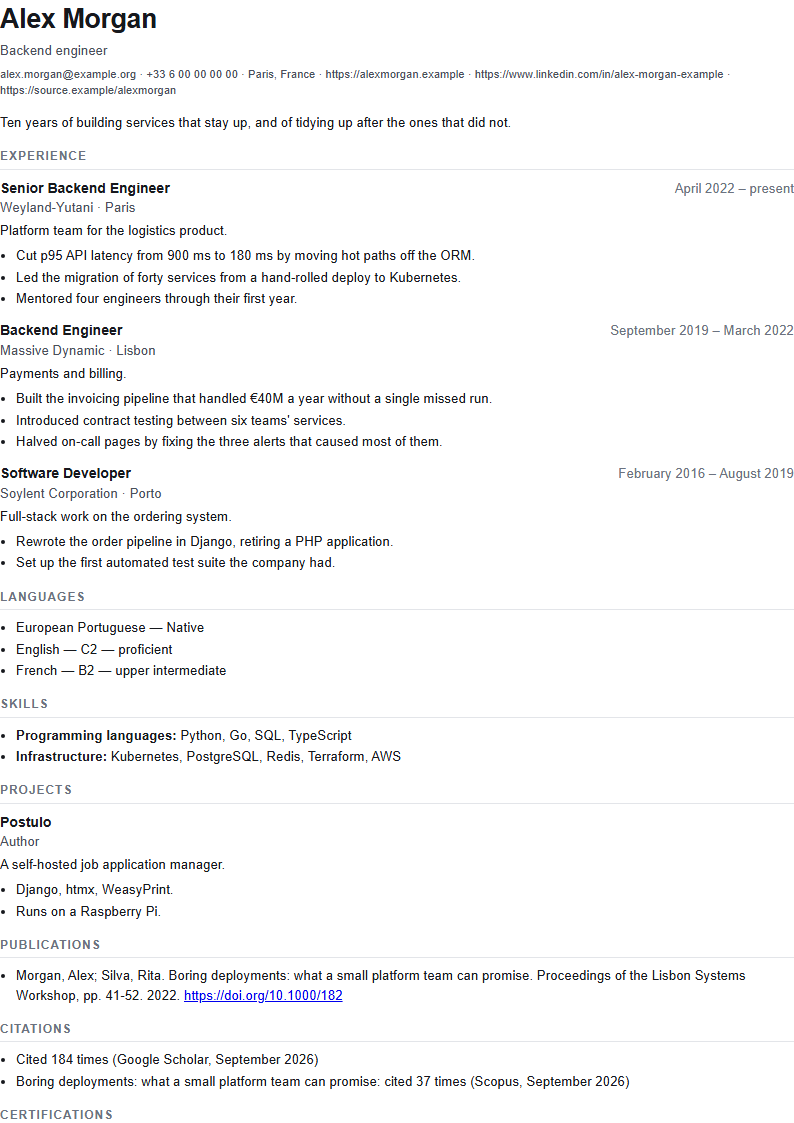
- Plain — a clean sans-serif layout. Sober and unremarkable, which is usually right.
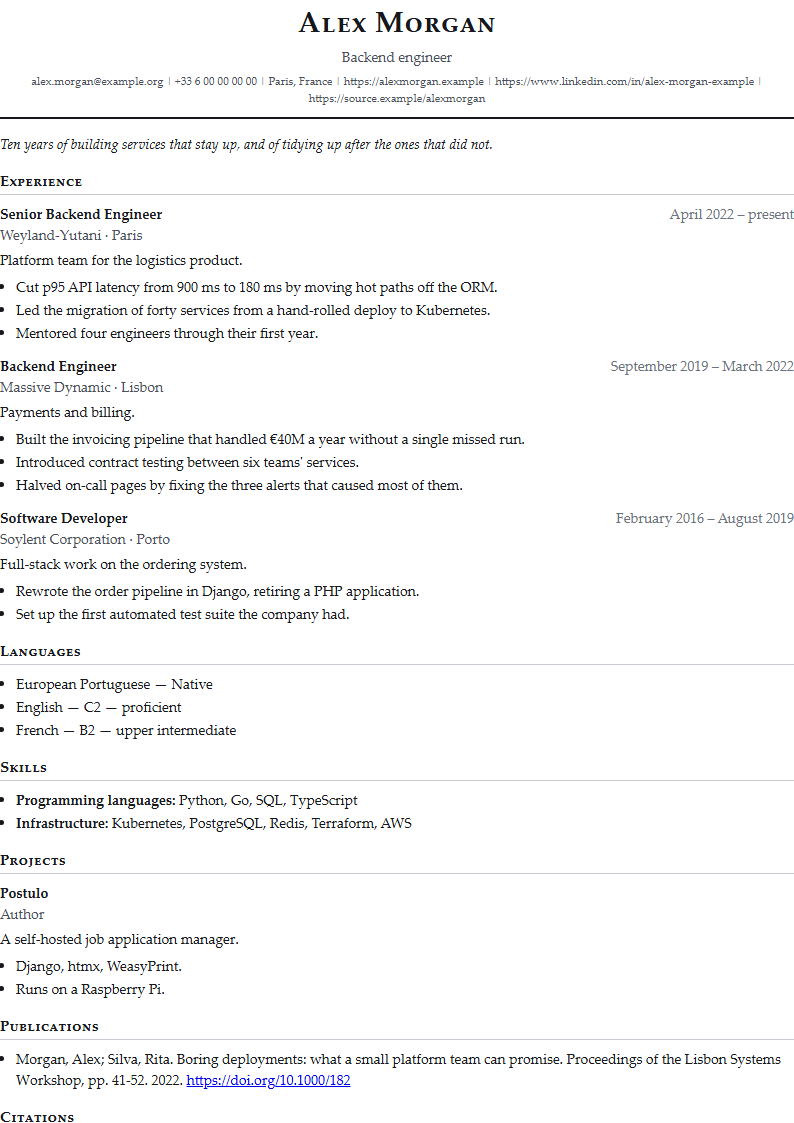
- Classic — a serif layout with small caps and a centred contact block.
Both print on A4 and US Letter, upright or on its side, with generous margins, both avoid splitting a single job — or a single piece of work — across a page break, and both set every kind of document Postulo writes, portfolios included. A theme from a plugin only appears in the menu for the kinds it says it can set, so a theme that has never been taught to lay out a portfolio is simply not offered for one.
A plugin can add more. The menu lists whatever is installed, and a theme from a plugin appears there under its own name with no further setting to change. A theme does not have to set everything, though — one written for letters will simply not be offered here, and you will see it on the letter form instead. Nothing offers you a pairing it cannot then produce; that is the point of the menu being shorter on one page than on another.
A theme says which papers it prints on. Plain and Classic print on all four. A theme from a plugin may print on fewer — one drawn for A4 portrait and nothing else, say — and a theme that says nothing about paper is taken to be A4 portrait only, since that is what every theme was drawn on before there was a choice. The paper picker beside the export offers only what the CV's theme prints on, and says so in a sentence where that is fewer than four.
A theme is markup, so it arrives the way code arrives: inside a plugin an administrator chose to install, having seen who wrote it. There is no upload box for themes, and there will not be one.
A theme draws only what it carries. The renderer fetches nothing while it draws — not a
file on the server, not an address on the network. A theme from a plugin brings its own
typefaces, logos and pictures inside its package, and Postulo writes them into the document
before drawing it: a drawing as part of the page, a picture or a font as a data: address.
One a theme points at by address is left out of the PDF rather than fetched, which is what
keeps a theme from reading the server's disk into somebody's CV. What a theme may carry is
limited to 1 MiB a file and 3 MiB a document.
A theme's typeface draws the scripts it says it draws, and is checked. A CV in a script the theme's font does not draw — a Greek CV in a theme whose font is Latin only — is set in the server's fonts instead, the same ones Plain and Classic use, rather than coming out as boxes. The preview shows the same font the PDF has.
If a plugin is removed, the CVs that used its theme keep working — they fall back to Plain and still export. Nothing is lost except the look, and choosing another theme puts that right.
What a CV prints about you
Your contact details are taken from Your details, not retyped per CV — and each CV chooses which of them it prints. On a CV's Settings, the card What this CV prints about you:
Include contact details is the master switch. Untick it for a variant that will be sent through a system that strips them anyway, or for an anonymised copy: the CV then prints no name and none of what follows, whatever is chosen below. Its PDF title, the file name of a snapshot, the draft's name and a DOCX title are the kind alone (CV), not your name.
Choose which details opens the rest. Until you open it, a CV prints what it always has: your primary telephone number, your account's email address, the primary link of each kind (social profile, code repository, website), every identifier, and where you are. There is a menu for each:
- Telephone number, email address, social profile, code repository, website. The first choice follows Your details — mark another number as primary there and this CV prints it, without the CV being opened. Any other row pins that one: it stays whatever becomes primary. The last choice prints none of that kind. Under each menu is what the CV prints as things stand. An email address is offered once it has been confirmed.
- Identifiers. Every identifier, including any you add later; or only the ones you tick; or none.
- Print where you are. The location line from Your details — what you typed, or the town and country of your primary address — and never a street.
- Print your form of address before your name, and print your pronouns after your name. Both are off until you tick them. The form of address is set before your name, in the name's own type; the pronouns after it, in brackets and in small print: Dr Alex Morgan (they/them). Both are worded in the language of the CV: the same choice prints Dr Alex Morgan (iel) in a French CV and Dr.ª Alex Morgan (elu/delu) in a Portuguese one, and what you wrote under Other… is printed as you typed it. English and French have one Dr and one Prof. for everybody, so a title you chose as Dr.ª in Portuguese prints as Dr there. The file's properties still name you by your name alone.
- Print your CV photo. Off until you tick it. The photo is the one on Your details under Your CV photo, never your avatar. It is printed beside your name in a 35 x 45 mm frame, filled and kept from the top, with no alternative text: the name is beside it. It is in the preview and the PDF only; the plain text and the Word file leave it out. A CV whose contact details are off prints no photo, as it prints no name, and the Europass reader and the candidate file leave a photograph alone.
- Print your date of birth, and print your place of birth. Both are off until you tick them, and a CV, a letter or a file made without choosing prints neither. A CV that prints one or both adds a single line under your details, in the CV's own language and date style: Born 12 Mar 1990 in Porto, Portugal. The plain text and the Word file carry the same line. A year alone is printed as a year, and the country is named in English, as the location is.
- Print your nationality. Off until you tick it. It adds Nationality: Portuguese, Brazilian to the same line, under a translated label. Each country is named as a person of it is called, in the CV's own language, for English, French and Portuguese (portugaise for a woman, portugais otherwise: it agrees with the gender you have set, and is the masculine, which is the dictionary form, when you have set none or set another answer); in any other language, and for a country with no word of its own, it prints the country's name as it always did. If you listed no country and said only whether you are a citizen of the EU, the EEA or Switzerland, it prints that sentence instead.
- Print your gender. Off until you tick it, and nothing suggests you should: some places advise against stating it and others expect it, so the switch is the whole answer. It adds Gender: Female, in the language of the CV (or your own words, if you wrote them under Other…), to the same line.
- Print the EQF level of my qualifications. Off until you tick it, so a CV nobody has opened stays what it was. Where a qualification on your career record states an EQF level, the CV adds EQF level 7 beside the institution and the place; the plain text and the Word file carry the same words, and an entry with no level prints nothing. The level means little on a CV for a country outside the framework's reach, which is why one CV may want it and another not.
- Say that references are available on request. Off until you tick it, so a CV nobody has opened stays what it was. It adds one line at the end, "References are available on request.", in the CV's language, whether or not the CV lists any references. It names nobody. It is Europass's own advice where the vacancy does not ask for referees.
References from your career record are printed in a References section only when the person has agreed; see References. One that has not agreed can be put on a CV, is left off its pages, and is named on the CV's page so it is not mysteriously missing.
- Messaging handle. The one kind that is never printed unless you choose it: its first choice is No messaging handle, because a Matrix or Signal name on a CV is a decision and not a default, and a CV from before handles existed prints exactly what it printed. Open the menu and pick one of your handles, and that one is printed, as the service's name and the handle (Signal name.42), in the contact line after the telephone number. Like the other kinds it pins the row: mark another handle primary on Your details and this CV still prints the one you chose, and delete the one it had chosen and the CV prints none until you choose again; with Messaging contacts switched off none is offered, and the choice is kept. A letter never prints one.
Two CVs can therefore print different numbers and different links, and a third none.
If you delete a detail a CV had chosen, that CV prints none of that kind until you choose again — never another in its place, because a CV prints only what you chose for it. Its page says so above the preview, and so does the card, where the menu now shows none; saving the settings makes that the CV's answer.
While a chosen row is only not offered — a second number while Several telephone numbers is switched off, an address that is no longer confirmed — the CV prints none of that kind too, and says so in the same two places, but the choice is kept. Its menu shows none in the meantime; saving the settings for any other reason leaves the choice alone, and the row is printed again as soon as it is offered again. Choosing anything else in that menu replaces it. To have none for good while the row is kept back, choose the first option, save, and then choose none.
What you have already sent does not change. The choice is read when a document is drawn; a version you exported or sent is a file, and stays the file it was. Changing a choice makes the next export a new version.
The preview, the draft, the PDF, the plain text and the Word file all print the same chosen details. Letters are not affected: a letter's sender block prints your account's address, primary number and location, as before. The menus work with scripts switched off.
Previewing and exporting
- The preview is on the page. Under As it will print, beside the entries, the CV is drawn exactly as the PDF renderer will see it and redrawn after every change — move an entry, and the document beside it moves with it. It shows what is saved. Scroll inside it to read on, or Open on its own for the document in a tab of its own. Fast, and needs no renderer installed.
- Download draft PDF, under the preview, gives you the CV as the PDF it would be, and keeps nothing. The preview cannot show where a page ends; a draft can, and looking costs no record: no version is filed, nothing appears under Versions you have sent, and no store is sent a copy. The file says it is a draft in its own name, because the file is the only thing that leaves.
- Export PDF renders it and keeps the result as a version — see Files and what you sent. The PDF is tagged, carries your name in its properties, and is readable by a screen reader and by the software an employer runs over it — see Accessibility.
Exporting the same CV twice keeps one version. If nothing on it has changed since the last export — not an entry, not a word, not the theme — Export PDF hands you the version already kept and says so, rather than filing a twin. Change anything and the next export is a new version. This is about exports only: a CV recorded as sent with an application is always a record of its own, however like the last one it is, because two employers sent the same CV were sent two things.
A draft and an export both need a working PDF renderer. WeasyPrint is installed with Postulo and used by default; if it cannot run, Postulo says exactly what is missing and everything else keeps working. See Installing Postulo.
The paper
A CV, a portfolio, a letter and the job-search report are printed on A4 or US Letter, each portrait or landscape. Which one, in order:
- The instance's default, set by its administrator under Server settings → Defaults → Documents. Nothing set there is A4 portrait. It is the administrator's to set because where an instance is used is something they know; Postulo does not guess it from the language a document is written in — a French CV is not necessarily printed in France.
- Your own default, under Settings → Export → Paper. Left at This instance's default, you follow the instance's, and a change the administrator makes reaches you.
- One export's choice. Paper, beside Download draft PDF on a CV's page, goes with every button that makes a file: Export PDF, the draft, and each format under In other formats. On a letter it is beside the draft, and on the report beside File it as a PDF. It starts on your default and offers only the papers the theme prints on.
A default the theme does not print on gives way: the document is drawn on A4 portrait where the theme prints on that, and on the theme's first paper where it does not. A paper you pick for one export that the theme does not print on is refused, with a sentence naming the ones it does, rather than quietly drawn on another.
Every renderer honours it. Postulo writes the page size into the document itself, so WeasyPrint and Chromium draw the same paper, and a Word or an OpenDocument file's pages are set on it too. Plain text has no pages. Record what you sent on an application draws on your default.
The paper is in the document, so a CV exported on Letter after one on A4 is a new version, not the one already kept. Your default is part of your account, and the account archive carries it.
In other formats
A PDF is the CV as somebody reads it, and it is the wrong thing to hand to a form. Many applicant tracking systems and public-sector portals ask for a Word file, or for the text pasted into a box. Under In other formats, on the CV's page:
- Copy as plain text opens a page with the CV's words in a box: select all of it and copy. It is a page rather than a button so that it works with scripts switched off; where the browser allows it, a Copy button appears beside the box and does the selecting for you. The box cannot be typed into.
- Download .txt is the same text as a file.
- Download .odt is an OpenDocument text file (ISO/IEC 26300), the open standard that public bodies in several countries ask for by name. It holds what the Word file holds, and opens in LibreOffice, Word and anything else that reads the standard.
- Download .docx is a Word document: your name, each section and each entry as real headings, the rest as paragraphs and bulleted lists, in the language the CV declares and laid out from the right for a language written that way. It carries no theme — it is for a portal to read and for you to restyle.
All of them are built from the same entries as the PDF, in the CV's own language, and say what the PDF says and no more. Something the themes do not print — a grade, a field of study — is not in the text either, so the text can stand beside the PDF as a record of what it claimed. A variant with include contact details unticked leaves them out of these too, and one that prints only some of them prints the same ones here.
None of them is filed as a version you sent, and none goes to a store. What reached an employer through a portal is whatever you pasted or uploaded; to keep a record of it, press Export PDF, or Record what you sent on the application.
The list on the page is read from a registry, so a format a plugin brings is on the page without the page changing. See Document formats in Writing a plugin.
What the file says about itself
A PDF, a Word file and an OpenDocument file each carry properties beside the words: a title, an author, a subject, keywords and a language. A recruiter's software and your file manager read them. Under In other formats the page shows what the file will say, each field starting as what Settings → Export gives every file (see below), and you can change any of them for that file:
- Title, author, subject, keywords, language. Keywords are for a search of your own files. Stuffing them does not help with applicant tracking software and can count against an application, so they start empty.
- Write the file with its properties is ticked by default. Untick it for a file with no author, no subject, no keywords and no dates, and a neutral title (CV) instead of your name; the download is named the same way. It keeps its language and a title, because a screen reader announces both and the PDF accessibility standard (PDF/UA) requires them. The program that draws a PDF may still put its own name in the file.
- Plain text has no properties. What you type is cut to a sensible length and written as text, never as markup.
A default for every file: Settings → Export
Settings → Export says what every file you export carries, so that you do not have to change it file by file. For each of the title, the author, the subject, the keywords and the language you choose:
- From the document: what an export has always written (your name and the kind of document as the title, the name the document prints as the author, the document's language). This is the default.
- Always this: a value of your own, for every file.
- Leave it out: the file does not carry it at all. A title left out still leaves the download a name, the neutral one (CV.pdf). A language left out leaves the file's properties only: the text is still set in that language, so spelling, hyphenation and the fonts a script needs stay right.
Strip all metadata leaves every file without a title, an author, a subject or keywords, whatever is chosen above or typed for one file, and takes the name of the program that drew it (WeasyPrint) out of a PDF. It keeps the language unless you also choose Leave it out for the language: a screen reader reads a file in the language it declares, and PDF/UA, the PDF standard for accessibility, requires one. While it is on, the export dialog on a CV or a letter says so instead of showing fields it would ignore.
What you type for one file in the dialog still goes over the default. Choosing from the document, always this or leave it out for one document at a time is not there yet.
The choice is part of your account, so the account archive carries it.
The same choice is on every button that makes a file, Export PDF and Download draft PDF included, and on Record what you sent, which writes the PDF it files with or without them. The choice is recorded with what was sent: Sent documents keeps the copy that went, and says whether it went with its properties, and the account archive carries it. A copy exported without them is not the twin of one with them, so exporting both files two versions.
Comparing two versions
Under Versions you have sent, every version but the first has Compare with previous. It shows what changed between that version and the one sent before it from the same CV, line by line:
- a line that is in this version and was not in the one before is marked +;
- a line that was in the one before and is not in this one is marked −;
- a few unchanged lines either side of each change say where it is, and the rest are left out and counted.
Nothing is said by colour alone: each kind of line has its sign and its own edge, and a screen reader is told added or removed in words. It reads on a phone without scrolling sideways.
It compares the words, not the page. The same entries set in another theme are the same words, and the comparison says so rather than reporting every line as changed.
A CV frozen before this release kept its page and not its words, so it cannot be compared line by line, and the page says that instead of comparing markup. Both versions can still be downloaded. Nothing is filled in afterwards: the words would have to be built from the CV as it stands today, which is the one thing a frozen version is not.
The same link is on an application's Documents page, beside each document that has an earlier version.
A note on languages
A CV variant has a language field, chosen from the languages this instance offers. It sets the language attribute of the rendered document, which matters for hyphenation and for screen readers — including the recruiter's.
Left blank, it follows the language you read Postulo in rather than defaulting to English. Cover letters have the same field and behave the same way.
A language the menu does not offer stays on it: one a file brought in, such as the
Portuguese of Angola, or one this instance has stopped offering. It is listed by its code,
pt-AO, and kept when the form is saved.
Each variant says which language it is in, as a flag beside its kind on Documents and on the variant's own page, so two versions of one CV are told apart without opening either. Where no flag stands for a language — Arabic, Swahili, Hausa and the others with no single home — the language's own name is shown instead, because no flag is better than a wrong one. A variant that follows your profile is drawn exactly like one that names its language: what the employer receives is the same either way.
It also decides which text the CV prints. Each career entry can be written in more than one language, and a CV declaring French prints the French version of every entry that has one. An entry with nothing in French prints as it stands — a line in the wrong language is better than a gap where a job used to be — and the CV's own page lists those entries before you press Export PDF, with a link to each. Finding out from the PDF an employer already has is not finding out.
Skills can print the classification's name. Where a skill's name is a skill in the ESCO classification (Your career record) and you have not translated it, a CV in another language prints the name the classification publishes in that language: Project management on an English record prints Gestion de projets on a French CV, with a capital first letter if yours had one. Never on a CV in your record's own language; never English in place of a language the classification does not publish — a Turkish CV prints your wording; and never over a translation of your own. The CV's page lists every skill printed this way before you export, each linking to the box where you can write your own.
A cover letter is different, and deliberately: a letter is prose you wrote rather than a selection from a record, so two languages means two letters.
It also sets the document's direction. A CV written in Arabic or Hebrew is laid out right to left; one written in English is laid out left to right, whichever language you happen to read Postulo in. The PDF goes to somebody else, so it is laid out for what is written on it rather than for who made it.