Getting started
Esta página ainda não foi traduzida, por isso é mostrada em inglês.
This walks through the first half hour, in the order that makes the least work.
1. Sign in
On a fresh instance, open the site and create the first account: it becomes the
administrator. (Or use the one you created with createsuperuser.) Either the username
or the email address signs in. The address counts as verified for that first account; for
everyone who signs up afterwards, a link is sent to their address and they sign in once
they have followed it.
2. Fill in your details
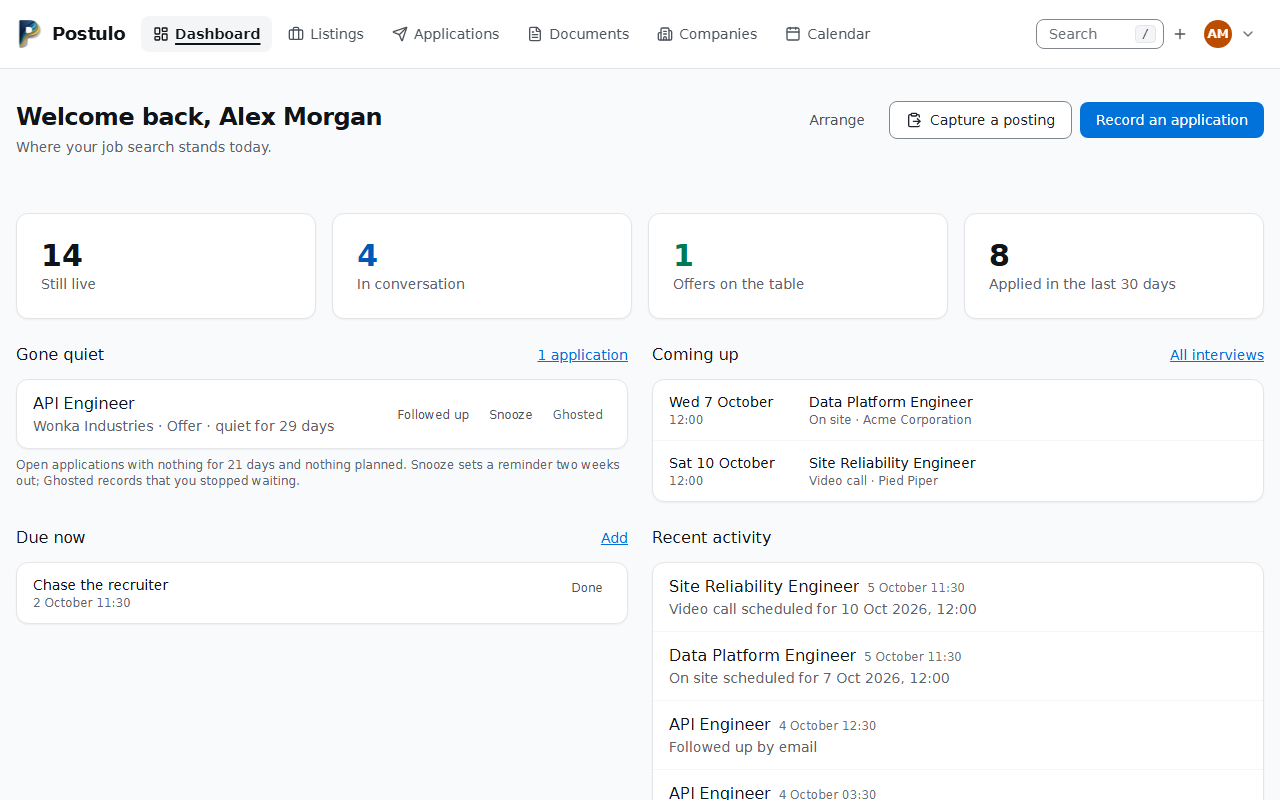
Your picture, top right → Your details. It is your initials until you give Postulo a picture. The menu under it also holds Settings and Sign out; everything else about your account, exporting it included, lives under Settings.
Your details is what Postulo knows about you as a candidate: the name, picture and contact block printed at the top of your CVs, and behind them your telephone numbers, postal addresses, messaging handles, links on the web and identifiers — one page, with its parts listed down the side so you can jump to one. It is worth doing first, because every CV you generate reads from it.
In Postulo itself: the question mark on the Your name card of Your details opens the short of this, in the language you read Postulo in — or, with scripts off, the page
/help/your-name/on your instance, in a new tab.
Your name has two optional menus with it. A form of address — Mr, Mme, Eng.ª — is what is written before a name; pronouns — she/her, iel, elu/delu — say how to refer to you. Each offers what is in use in the language of your career record (the setting under Contact block, or the language you read Postulo in when that is blank): English, French, European and Brazilian Portuguese have lists, and any other language offers only Other…, which opens a box after the menu to write your own — with or without JavaScript. What is kept is your choice and not one language's word for it: he/him in English and il in French are the same choice, so it is shown in the language your pages and documents are drawn in and nothing is changed when the record changes language. Only what you write under Other… is kept as you typed it, and shown as typed in every language; a word you type there that a list already has is kept as that choice. Nothing is assumed when either is blank, neither is ever worked out from your name, and neither is printed anywhere unless a CV says so: each CV has its own switch for each, both off to begin with, under What a CV prints about you. Letters print neither.
Personal details is a card of its own, after Your name, for what an identity check asks for and a job search rarely needs: your date and place of birth, your nationalities, and your gender. All of it is optional, none of it is worked out from anything else, and none of it is printed unless a CV says so, each with a switch of its own under What a CV prints about you, all off to begin with. Gender is a menu like the two beside your name: Not stated, a short list in the language of your career record (Female, Male, Non-binary; Féminin, Masculin in French and Feminino, Masculino in Portuguese; English, French, European and Brazilian Portuguese have one), and Other… for your own words, with or without JavaScript. What is kept is your choice, shown in whichever language it is drawn in, it is separate from your form of address and your pronouns (choosing one never suggests or changes another), and there is no gender on a contact. Nationalities are one menu per country, as many as you hold, each named as a person of it is called (Portuguese (Portugal), so either word finds it), or only whether you are a citizen of the EU, the EEA or Switzerland.
In Postulo itself: the question mark on the Contact block card of Your details opens the short of this, in the language you read Postulo in — or, with scripts off, the page
/help/contact-block/on your instance, in a new tab.
Location can be left blank. A blank location prints the town and country of your primary postal address — never the street — on your CVs and letters, and the box shows that line in grey, with a sentence saying where it came from. Type something and that is printed instead. The blank is what is kept, so making another address primary moves the location on your CVs without Your details being saved again. If you had an address and no location before this arrived, your CVs and letters now print its town and country where they printed nothing; type a location to print something else. The country is named in English whatever language the document is in.
A postal address is checked against its country as you save, and a postcode's spaces and hyphens are put right for you; a town and a country alone are enough. See Postal addresses on Your details.
How Postulo behaves for you lives under Settings, one section per page:
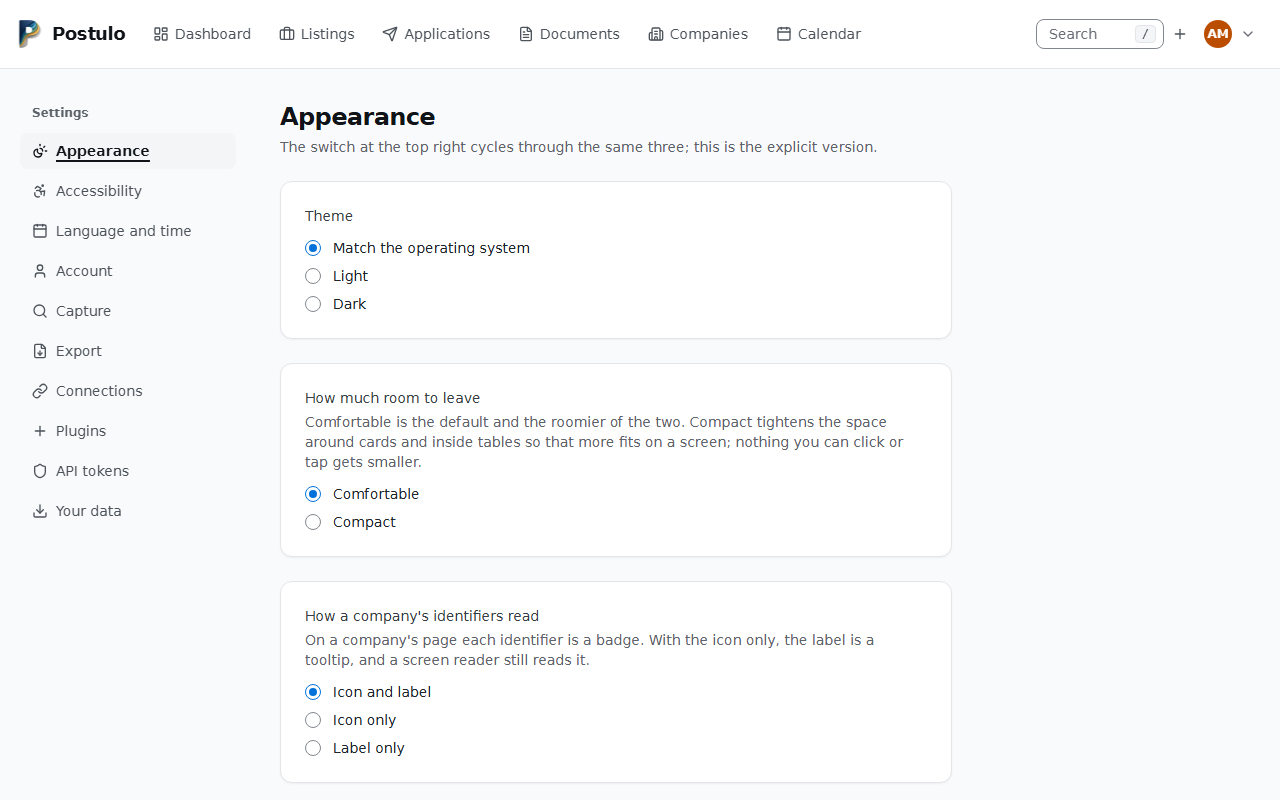
- Appearance — light, dark, or match your operating system. The switch in the menu under your picture cycles through the same three; this is the explicit version. The same page lists the items of the navigation, in your order: tick the ones you want to see, and move each one up or down with its arrows — they work with scripts off, and the page keeps your place after each press. The order decides what stays in reach: the row across the top holds as many as the window has room for and puts the rest under More, and a phone's bar holds them all in your order, scrolling sideways when they do not fit. So putting Applications first is also keeping it under your thumb. Everything is reachable another way, so leaving one out takes nothing away; Back to the usual order undoes the arranging. The same page lists the identifier schemes (ORCID, Wikidata, LEI and the rest) the same way: choose which are shown and in what order (see Your career record). Dashboard is the one most people drop: the Postulo wordmark already goes there, and once the link is gone the wordmark says so to a screen reader and lights up on the dashboard itself.
- Accessibility — the choices that
are yours rather than your browser's: whether career entries show their order as a number,
whether the key caps are drawn beside the controls that have a key, whether a field on
Appearance and Accessibility is saved the moment you change it (see
Accessibility), and whether a single key on its own does anything —
dandjon the capture review,/for the search box. Both are on unless you say otherwise, and shortcuts that needCtrlare unaffected either way. - Language and time — the interface language, and the time zone dates are shown in. The time zones are grouped by continent, with the ones that belong to none under Other time zones, and typing in the box at the top of the list narrows it. Each language is written in itself, so you can find yours without reading English, and the flag beside it is a picture rather than an emoji — Windows does not draw flag emoji, and used to show two letters here instead. Postulo speaks every official language of the European Union and, language by language, the rest of the European continent; a few of them fly the flag of a place that is not a state — Catalonia, the Basque Country, Galicia, Wales — because the state they sit in already flies its flag for another language on the same list. A language whose translation is a machine-assisted draft says so in the list until a speaker has reviewed it, and translating is the easiest way to help.
- Plugins — what is running for your account, and who decided it. Anything you may change, you change here; anything an administrator decided for you is shown switched the way they set it, locked, with their name against it. The plugins Postulo itself ships are an administrator's to switch, for you or for everybody, and are hidden here until you tick Show the plugins Postulo ships — except one an administrator decided for your account, which always shows. Switching one off stops it being used and deletes nothing.
- Account — your username, your email addresses, your password, two-factor authentication, and any single sign-on connected to the account.
- Connections — where the plugins that act for you (notifications, document stores, synchronisation) find their services and how they sign in. Empty until the operator installs such a plugin; each one you add is tested, run and reported on from here.
- API tokens — for the browser extension and anything else that acts for you, each allowed only what you tick (see The API).
- Your data — the export.
3. Note what you find, then apply
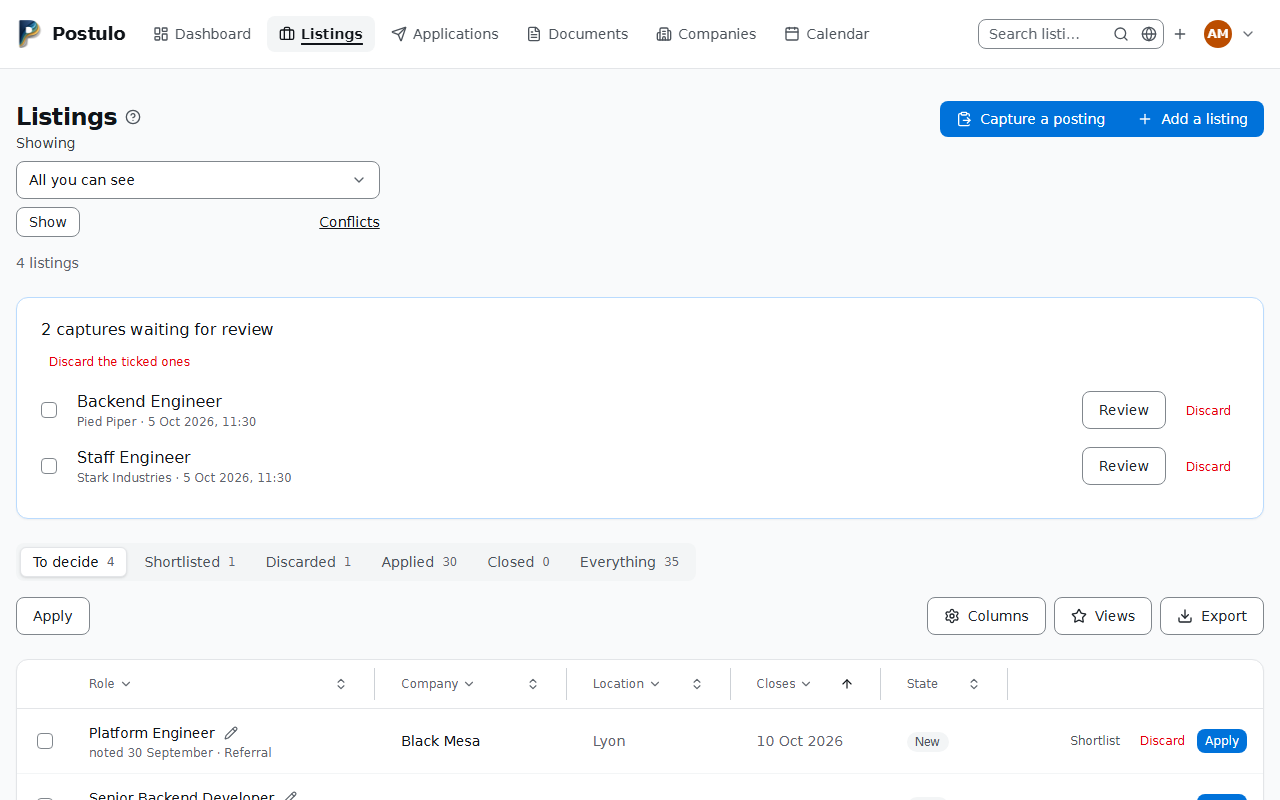
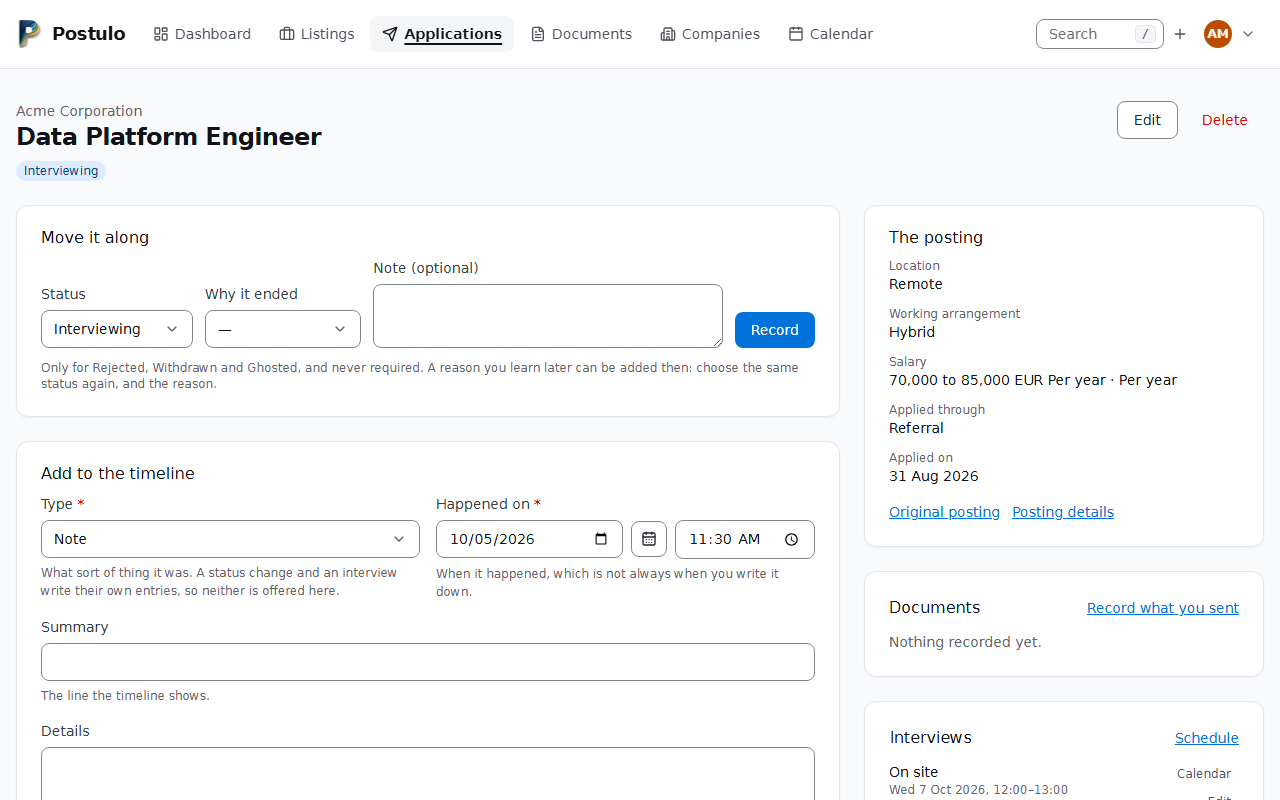
Postings you notice go into Listings first: capture one from its address, or Add a listing by hand. Only the company and the job title are required; the company is matched by name and created for you if it is new, so you never have to set one up first. From there, each listing is shortlisted, discarded, or applied to — and Apply is what turns it into an application with a timeline. See Listings.
Already applied somewhere? Record an application, on the dashboard or on the Applications page, does both steps in one form.
Two fields are worth filling in even when you are in a hurry:
- The posting text. Paste it. Postings vanish from the web the moment they are filled, and by the time you get an interview the advert you applied to may no longer exist anywhere.
- Status. Set it to Applied if you have already sent something, or leave it on Draft if you are still deciding.
That is the minimum useful loop. Everything below makes it more valuable.
4. Write your career down once
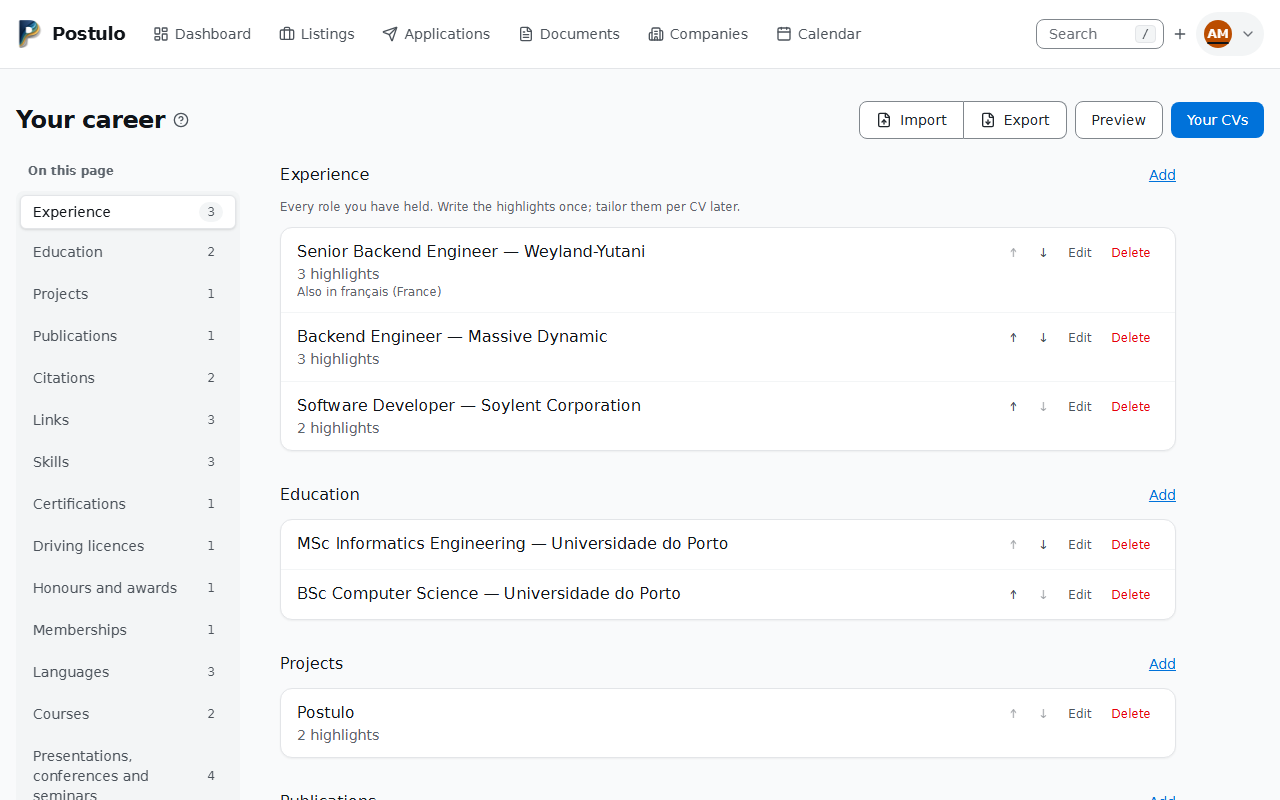
Your picture, top right → Your career.
Add your roles, qualifications and skills here rather than in a document. It takes a while the first time and never again: every CV variant you build afterwards selects from this record, so fixing a job title fixes it everywhere.
See Your career record.
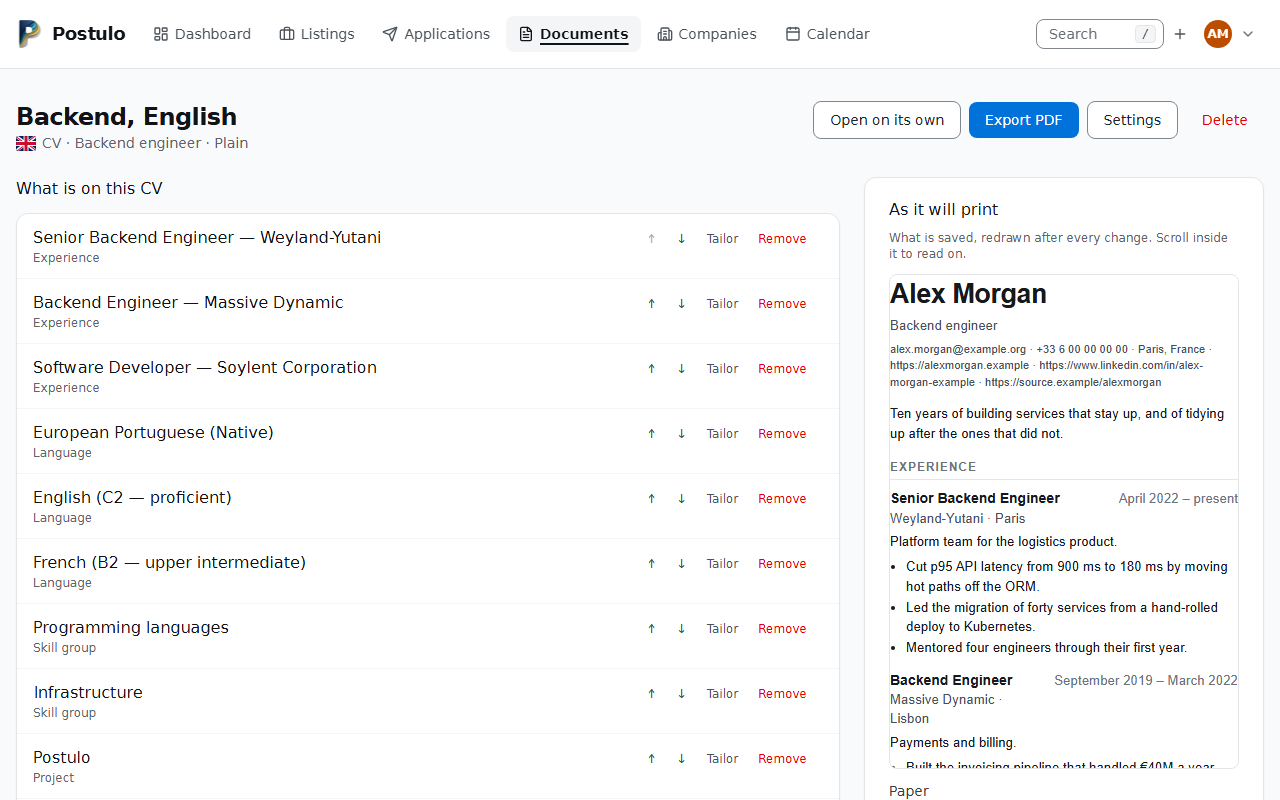
5. Build a CV variant
Documents → New CV.
A variant is a selection from your career record, in an order you choose, with optional per-variant rewording. Make one per kind of role you apply for — not one per application.
See CVs.
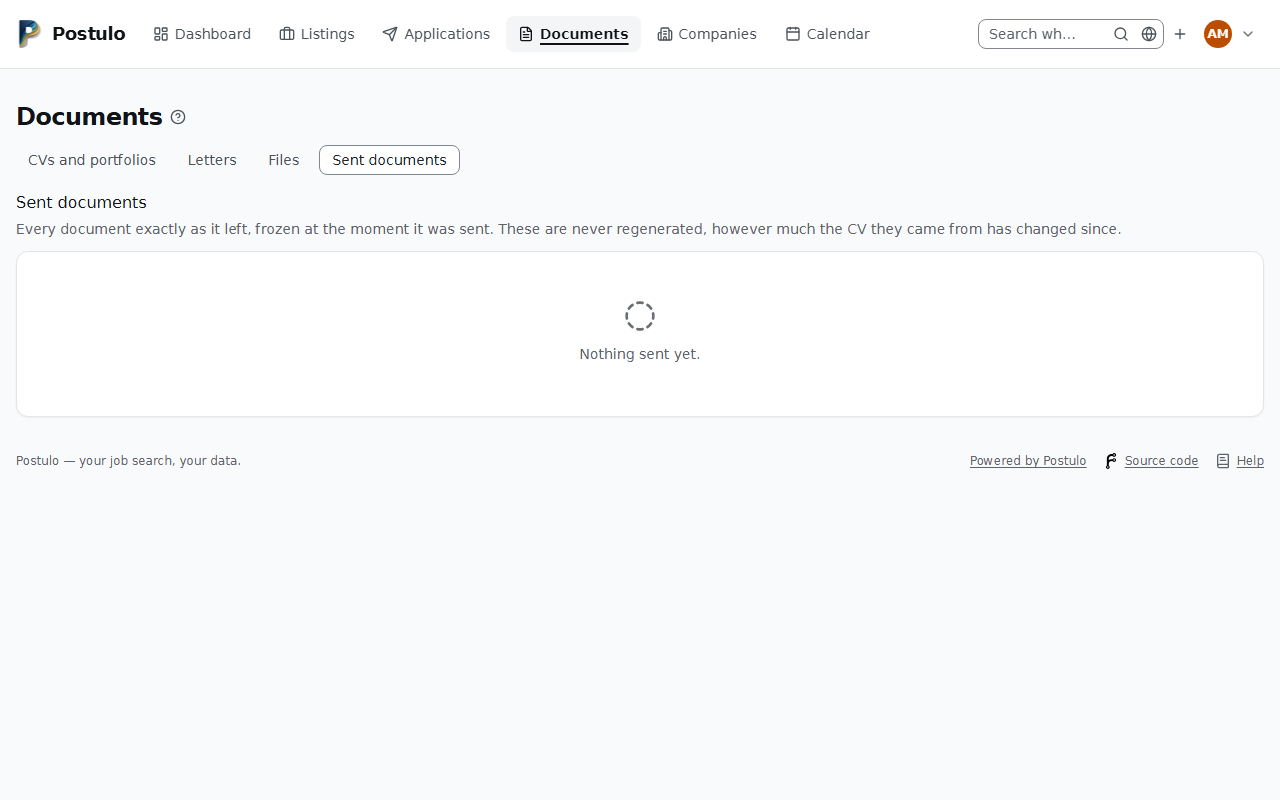
6. Record what you sent
On an application, Documents → Record what you sent.
Postulo renders your chosen CV and cover letter as they stand at that moment and keeps those PDFs unchanged forever. This is the feature you will not appreciate until three months later, when someone asks about a line on a CV you have since rewritten.
Seeing it with data first
An empty Postulo is hard to judge. To fill an account with a fictional but believable search — thirty applications over six months, ending every way a search can, with CVs, letters and PDFs of what was "sent":
Everything it creates is obviously invented (the employers are Aperture Science, Black
Mesa and their friends), and the timelines are scripted so that the figure widgets have a real story
to tell. It refuses to add to an account that already holds a search; pass --reset to
replace one, or give it a different address to create a throwaway account. That account's
password is read from the POSTULO_SEED_PASSWORD environment variable, or asked for when you
pass --password, or made up and not shown; it is never taken from the command line, where
it would stay in the shell's history. With Docker: docker compose exec postulo python manage.py seed_demo ….
Where things live
| Page | What it is for |
|---|---|
| Dashboard | What needs doing: applications worth chasing, reminders due, recent activity. Made of widgets you arrange — press Arrange to move them, take them off, and add the figures that used to be on Insights. |
| Applications | Everything, as a filterable table — or, with the switch on the page, only what is still live arranged by status on a board. The filters survive the switch. |
| Documents | CVs, cover letters, uploaded files, and your career record. The four lists (CVs, Letters, Files, Sent documents) each begin with a row of links to the others. |
| Companies | Employers, their people, the postings you recorded, and a logo if you gave one. |
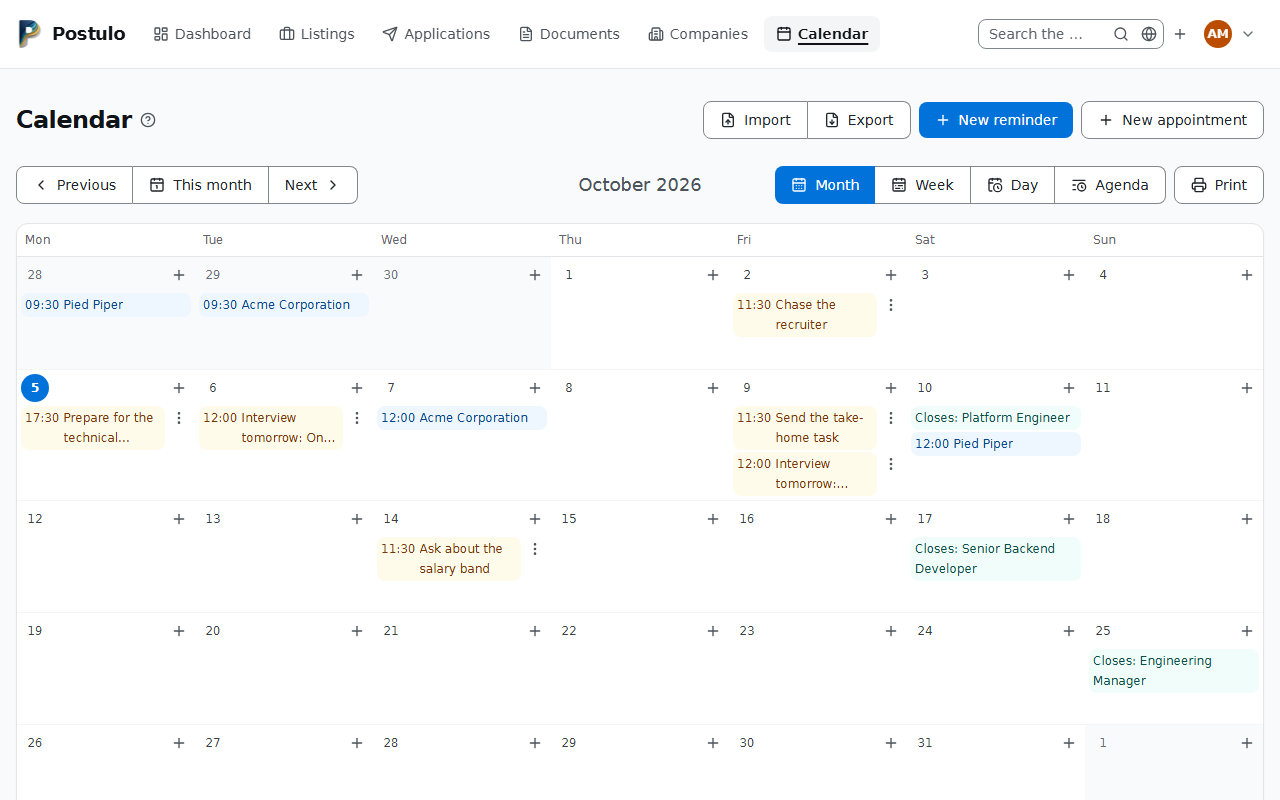
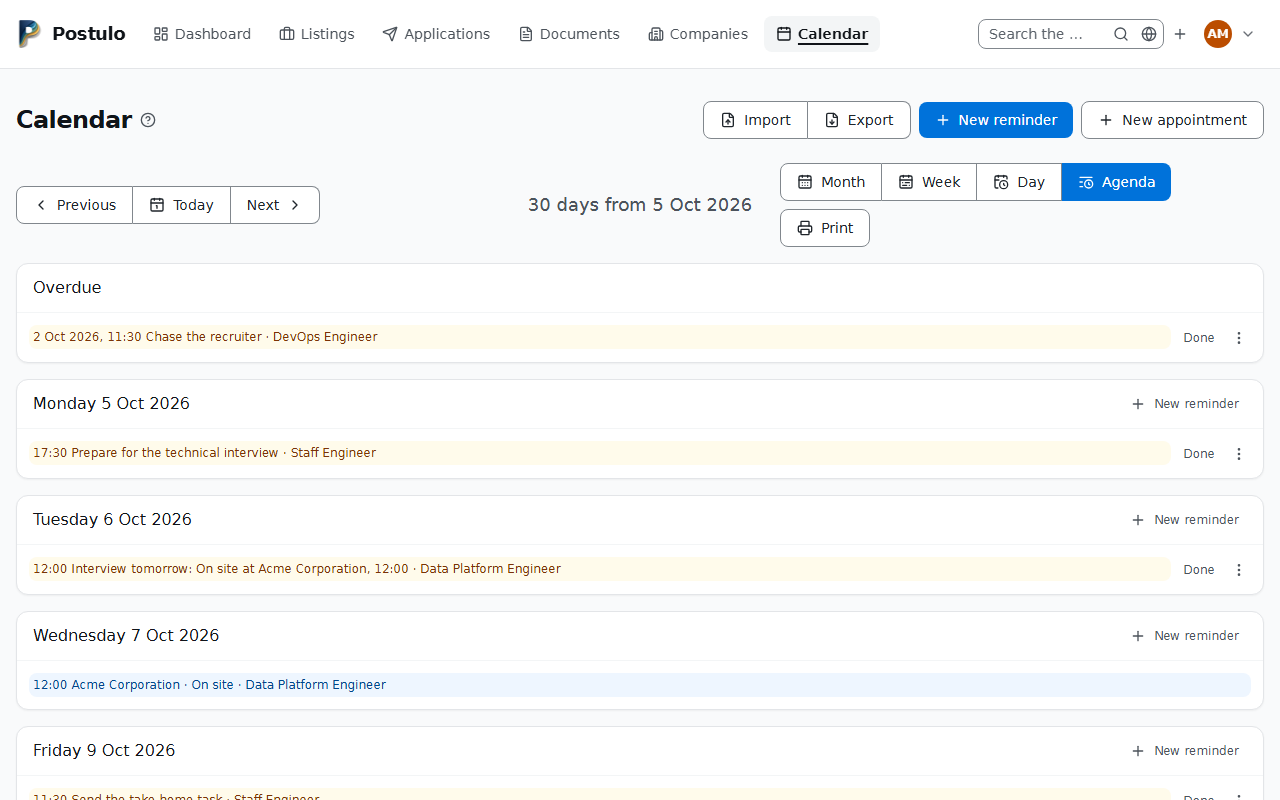
| Calendar | Interviews, reminders, application deadlines and listing closing dates by day: a month, a week, a day, or the next thirty days as a list. Reminders are made, done and put off here — each day has its own New reminder — and the key along the top is also the filter: click Reminders and the list is everything still to do, overdue first. |
On a phone the same places are in a bar along the foot of the screen, all of them, in your order. When they do not fit side by side the bar scrolls sideways — swipe it, or reach the rest with Tab — and the end with more past it fades out. The page you are on is always in view when a page opens. The magnifier at the top opens the search box in the header, in place of the logo and name, with the focus already in it; the × beside it, or Escape, puts the header back. With scripts switched off it goes to the search page instead. On Companies, Applications and Listings it opens a box that searches that page's table, with a globe beside it that searches everything; that box closes again when you move on to something else. On a wider screen the row across the top takes over, an icon beside each name, with whatever does not fit under More.